The hYYa Digital Footprint Check detective, a blue furry detective in a deerstalker hat studying a glowing digital footprint through a red magnifier Privacy check-up · iPhone and iPad

iPhone privacy settings: a step-by-step check-up (2026)

Start with five settings: they take a few minutes, and the rest can wait for another day. The guide and the app are both free.

It works for iPad too: every step is the same, except Stolen Device Protection, which is iPhone only. Each step’s wording comes from hYYa Digital Footprint Check, a free app that shows what any app can read and walks you through Settings.

Last checked:

  • iPhone
  • iPad
  • Mac
  • Android

Requires iOS or iPadOS 26 or later, or macOS 26 or later on a Mac with Apple silicon.

Free · no ads No hYYa account Data Not Collected Open source

Quick answers

Should I turn on Lockdown Mode?
Most people never need it: it’s Apple’s strongest defence against rare, targeted spyware, and journalists, activists and officials should consider it. If your work could make you a target, turn it on; otherwise, leave it off and keep your system updated. See the step →
Do I need Stolen Device Protection?
If someone takes your iPhone and knows your passcode, it adds extra checks before they can change sensitive settings away from familiar places. Turn it on in Settings › Face ID & Passcode; it may already be on. See the step →
What is the App Privacy Report?
It’s Apple’s own record of which apps used your location, camera, microphone and contacts in the last 7 days, and which websites they contacted. Turn it on in Settings › Privacy & Security › App Privacy Report; hYYa Digital Footprint Check can explain it in plain words. See the step →

Start here: the five essentials

If you only do five things, do these.

Start with Safety Check

Apple’s own review of who and what can reach your information. It covers people you share with and app permissions in one place.

Where to go

Settings › Privacy & Security › Safety Check

Quickest: open Settings and type “Safety Check” in its search bar.

What to do

  1. Tap Manage Sharing & Access.
  2. Go through each screen and remove anything you don’t recognise or no longer need.
Footprint check-up step: Start with Safety Check, with the Settings path and what to do

Lock your device

Your passcode protects everything else on this device. A short Auto-Lock locks it soon after you put it down.

Where to go

Settings › Face ID & Passcode

Quickest: open Settings and type “Face ID & Passcode” in its search bar.

Auto-Lock is at Settings › Display & Brightness › Auto-Lock.

What to do

  1. Use a passcode of at least six digits. Passcode Options offers longer ones.
  2. Set Auto-Lock to 30 seconds or 1 minute: Settings › Display & Brightness › Auto-Lock.
  3. Under Allow Access When Locked, turn off what you don’t need on the Lock Screen, such as Control Center.

On a device with Touch ID the row is called Touch ID & Passcode, and on one with neither, just Passcode.

Footprint check-up step: Lock your device, with the Settings path and what to do

Protect your Apple Account

Your Apple Account can hold your photos, messages and backups. Two-factor authentication protects it even if your password leaks.

Where to go

Settings › [your name] › Sign-In & Security › Two-Factor Authentication

Quickest: open Settings and type “Two-Factor Authentication” in its search bar.

What to do

  1. Turn on Two-Factor Authentication.
  2. Add a trusted phone number you can always reach.
Footprint check-up step: Protect your Apple Account, with the Settings path and what to do

Keep the system updated

Updates close the holes that spyware uses to get in. It’s the single best protection there is.

Where to go

Settings › General › Software Update › Automatic Updates

Quickest: open Settings and type “Automatic Updates” in its search bar.

What to do

  1. Turn on Automatically Install.
  2. If an update is waiting, install it now.
Footprint check-up step: Keep the system updated, with the Settings path and what to do

Check for leaked passwords

Apple’s Passwords app warns you when a saved password has turned up in a known data leak. It checks without revealing your passwords, and Footprint sees nothing.

Where to go

Passwords app › Security

Also in Settings › Apps › Passwords › Detect Compromised Passwords.

What to do

  1. Open the Passwords app and tap Security.
  2. Change any password marked as leaked or reused.
  3. In Settings › Apps › Passwords, keep Detect Compromised Passwords on.
Footprint check-up step: Check for leaked passwords, with the Settings path and what to do

More areas

Eighteen more places worth a look, in the order the app shows them. Take them one at a time.

Be able to find your device

If you lose your device, you can see where it is, lock it or erase it from another device.

Where to go

Settings › [your name] › Find My › Find My [your device]

What to do

  1. Turn on Find My.
  2. Turn on Find My network, so it can be found even when it’s offline.
  3. Turn on Send Last Location.
Footprint check-up step: Be able to find your device, with the Settings path and what to do
Big one: theft

Stolen Device Protection

If someone takes your device and knows your passcode, this adds extra checks before they can change sensitive settings away from familiar places.

Where to go

Settings › Face ID & Passcode › Stolen Device Protection

Quickest: open Settings and type “Stolen Device Protection” in its search bar.

What to do

  1. Turn it on. It may already be on.
  2. You’ll need two-factor authentication, Face ID and Significant Locations on.

Stolen Device Protection is on iPhone only; iPad doesn’t have it. With Touch ID the row is Touch ID & Passcode.

Before you turn it on

Stolen Device Protection needs two-factor authentication for your Apple Account (step 3), Face ID or Touch ID, and Significant Locations turned on.

Footprint check-up step: Stolen Device Protection, with the Settings path and what to do

Lock sensitive apps

Locking an app asks for Face ID or your passcode before it opens, even when your device is unlocked.

Where to go

Home Screen: touch and hold an app

What to do

  1. Choose Require Face ID.
  2. Some built-in apps can’t be locked.

With Touch ID, the choice reads Require Touch ID.

Footprint check-up step: Lock sensitive apps, with the Settings path and what to do

Social media apps

Social apps can learn a lot from what they’re allowed to reach, and from what other apps and websites share with them.

Where to go

Settings › Apps, then a social app

Quickest: open Settings and type “Apps” in its search bar.

What to do

  1. Turn off what the app doesn’t need, such as location, contacts, microphone and camera.
  2. In each app, open its privacy and ad settings and turn off what you don’t want.
  3. On Facebook and Instagram, look in Accounts Center or Meta Account settings for Your activity off Meta technologies and Ad preferences. Names can change, and some options aren’t offered everywhere.
Footprint check-up step: Social media apps, with the Settings path and what to do

VPN & Device Management

A profile here can let someone manage this device, send your internet traffic through their servers, or read connections that are meant to be private.

Where to go

Settings › General › VPN & Device Management

Quickest: open Settings and type “VPN & Device Management” in its search bar.

What to do

  1. Tap each profile or management entry you don’t recognise, then choose Remove.
  2. Keep ones your work or school set up with you, and VPNs you installed yourself.
Footprint check-up step: VPN & Device Management, with the Settings path and what to do

Restart once a week

Some spyware lives only in memory and is cleared by a restart. It also gives apps a new restart time, so they can’t use it to recognise you.

Where to go

Hold the side or top button and either volume button

What to do

  1. Drag the slider to turn the device off.
  2. Wait a few seconds, then hold the side or top button until the Apple logo appears.
  3. Do it again next week.
Footprint check-up step: Restart once a week, with the Settings path and what to do
Lockdown Mode

Protection from targeted spyware

Lockdown Mode is Apple’s strongest defence against rare, targeted spyware such as Pegasus. Most people never need it; journalists, activists and officials should consider it.

Where to go

Settings › Privacy & Security › Lockdown Mode

Quickest: open Settings and type “Lockdown Mode” in its search bar.

What to do

  1. If your work could make you a target, turn on Lockdown Mode. Some features, such as link previews, will be limited.
  2. If Apple ever warns you of a targeted attack, by email, message or at account.apple.com, follow its advice.
  3. Otherwise, leave it off and keep your system updated.

Lockdown Mode, in short

Lockdown Mode is a setting from Apple, built into your iPhone and iPad. It deliberately limits some features, such as link previews, to make an attack harder. Most people never need it.

If Apple ever warns you of a targeted attack, by email, message or at account.apple.com, follow its advice.

Footprint check-up step: Protection from targeted spyware, with the Settings path and what to do

Health

Health data is the most personal information on your device: sleep, heart, cycles, medicines.

Where to go

Health app › your picture or initials › Privacy › Apps

What to do

  1. Open each app in the list.
  2. Turn off any data type the app doesn’t truly need.
  3. Check Devices in the same place, and remove any you no longer use.
Footprint check-up step: Health, with the Settings path and what to do

Location

Your location shows where you live, work and spend time.

Where to go

Settings › Privacy & Security › Location Services

Quickest: open Settings and type “Location Services” in its search bar.

What to do

  1. For each app, choose Never or While Using the App. Avoid Always.
  2. Turn off Precise Location for apps that only need your city.
  3. Look at System Services at the bottom and turn off what you don’t use.
Footprint check-up step: Location, with the Settings path and what to do

Photos

Full Photos access lets an app see every picture and where each one was taken.

Where to go

Settings › Privacy & Security › Photos

Quickest: open Settings and type “Photos” in its search bar.

What to do

  1. Choose Limited Access, and pick only the photos an app needs.
  2. Use None for apps that never need photos.
Footprint check-up step: Photos, with the Settings path and what to do

Contacts

Your contacts include other people’s numbers and addresses, not just yours.

Where to go

Settings › Privacy & Security › Contacts

Quickest: open Settings and type “Contacts” in its search bar.

What to do

  1. Choose Limited Access, or turn access off for apps that don’t need it.
Footprint check-up step: Contacts, with the Settings path and what to do

Calendars and Reminders

Calendars show your routine, and their account names often give away where you work.

Where to go

Settings › Privacy & Security › Calendars, then Reminders

Quickest: open Settings and type “Calendars” in its search bar.

What to do

  1. Prefer Add Events Only for apps that just create events.
  2. Turn off access for apps you don’t recognise.
Footprint check-up step: Calendars and Reminders, with the Settings path and what to do

Bluetooth and Local Network

These let apps see devices around you and on your Wi-Fi, often named after their owners.

Where to go

Settings › Privacy & Security › Bluetooth, then Local Network

Quickest: open Settings and type “Bluetooth” in its search bar.

What to do

  1. Turn off any app that doesn’t connect to a device of yours.
Footprint check-up step: Bluetooth and Local Network, with the Settings path and what to do

Microphone and Camera

Only apps you use for calls, video or photos should have these.

Where to go

Settings › Privacy & Security › Microphone, then Camera

Quickest: open Settings and type “Microphone” in its search bar.

What to do

  1. Turn off any app you don’t use for calls, video or photos.
Footprint check-up step: Microphone and Camera, with the Settings path and what to do

Motion & Fitness

Shows when you walk, drive or sleep, which reveals your daily routine.

Where to go

Settings › Privacy & Security › Motion & Fitness

Quickest: open Settings and type “Motion & Fitness” in its search bar.

What to do

  1. Keep it only for fitness and health apps you trust.
Footprint check-up step: Motion & Fitness, with the Settings path and what to do

Tracking

Turning this off tells every app not to track you across other companies’ apps and websites.

Where to go

Settings › Privacy & Security › Tracking

Quickest: open Settings and type “Tracking” in its search bar.

What to do

  1. Turn off Allow Apps to Request to Track.
Footprint check-up step: Tracking, with the Settings path and what to do

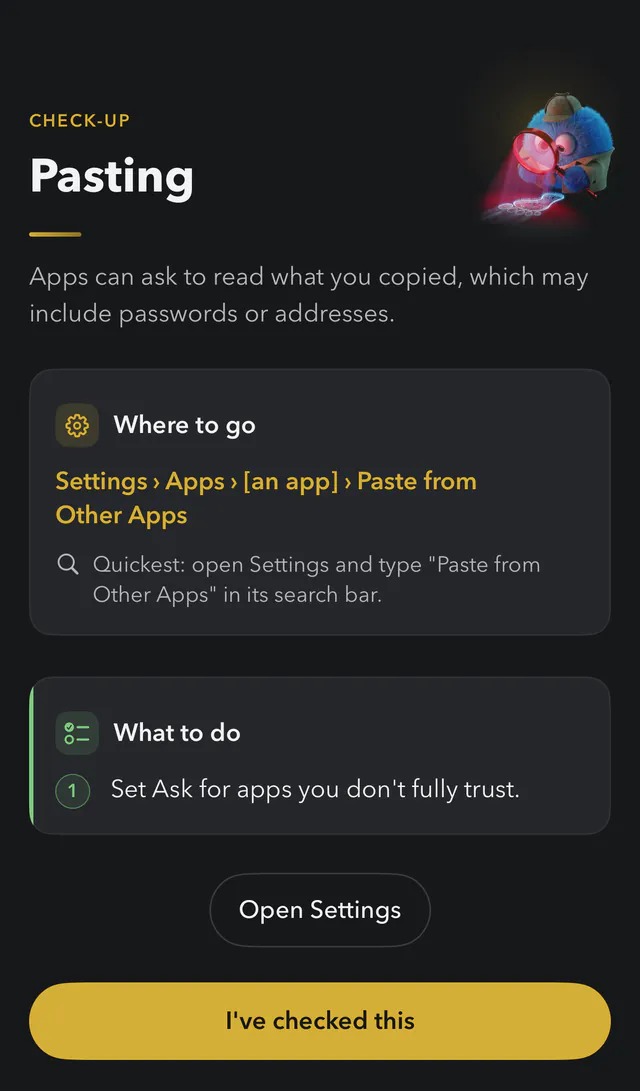
Pasting

Apps can ask to read what you copied, which may include passwords or addresses.

Where to go

Settings › Apps › [an app] › Paste from Other Apps

Quickest: open Settings and type “Paste from Other Apps” in its search bar.

What to do

  1. Set Ask for apps you don’t fully trust.
Footprint check-up step: Pasting, with the Settings path and what to do
Apple’s report

App Privacy Report

Shows which apps actually used your location, camera, microphone and contacts in the last 7 days, and which websites they contacted.

Where to go

Settings › Privacy & Security › App Privacy Report

Quickest: open Settings and type “App Privacy Report” in its search bar.

What to do

  1. Turn it on if it’s off, then come back in a few days.
  2. Look for apps using things you didn’t expect, and remove their access.
Footprint check-up step: App Privacy Report, with the Settings path and what to do

Reading your App Privacy Report

The App Privacy Report is Apple’s feature. It’s a long list of web addresses, so hYYa Digital Footprint Check helps you read it.

Get your report

  1. Open Settings and type App Privacy Report in its search bar, or go to Privacy & Security › App Privacy Report. If it’s off, turn it on and come back in a few days.
  2. Tap the Share button at the top right to export it, then Save to Files.
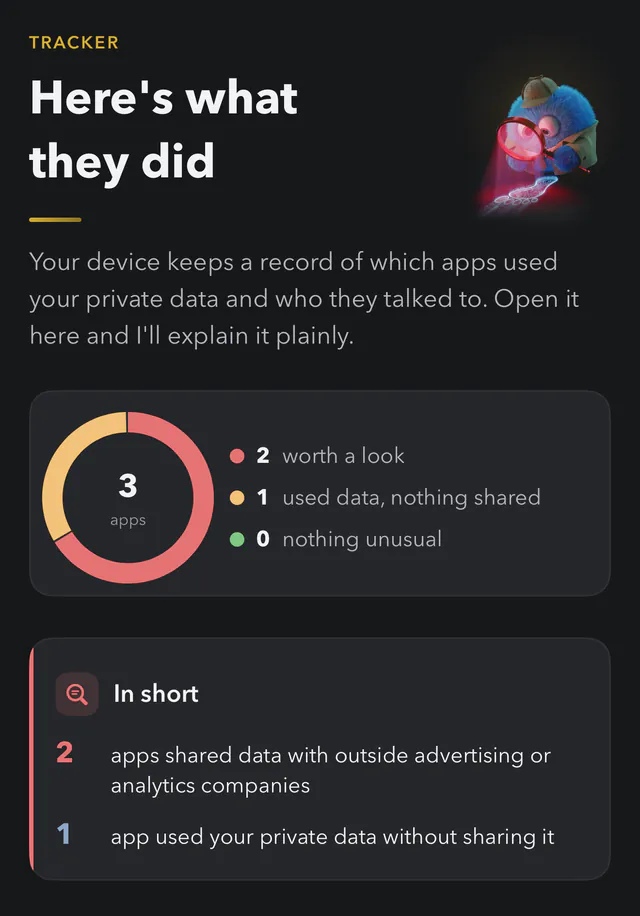
  3. In hYYa Digital Footprint Check, open Tracker and tap Analyze my report.

What you’ll see

“In short”: how many apps shared data with outside advertising or analytics companies, and how many used your private data without sharing it. Then each app, in one plain sentence, under Worth a look, Kept: you trust these, Used your data, nothing shared, and Nothing unusual.

To take access back, open Settings › Apps, turn off what an app doesn’t need, and turn off Allow Tracking for apps that share with advertising companies.

What the report can’t show

  • It covers only the last 7 days.
  • Apps that send things when first installed, or only now and then, may not appear.
  • It shows who an app talked to, not what it sent.
  • Sites are named by their address.

The report is read only on your device and never sent.

Footprint's Tracker page: Here's what they did, with a summary of apps that shared data with advertising or analytics companies

What any app can read without asking

Some details can be read by any app, with no permission and no pop-up. One alone says little; together they can recognise your device. This is called device fingerprinting. Here are four, in hYYa Digital Footprint Check’s words.

Your last restart time gives you away

“Apps can read the exact moment you last restarted. It’s rare enough to recognise you, until your next restart.”

What helps: restart once a week.

Apps can see your free space, to the byte

“That number is almost unique and changes slowly, so apps can use it to recognise you.”

No setting changes this. Only a system update from Apple can.

Apps can see your headphones’ name

“Names like ‘Sam’s AirPods’ give away a first name. Renaming them fixes it.”

What helps: rename your headphones in Settings › Bluetooth, to something without your name.

Apps can see when this device was set up

“The exact second is almost unique and lasts for years. Only Apple can hide it.”

Websites can read some details too. See what any website can read about your device, shown only on your screen.

Questions, answered

Should I turn on Lockdown Mode?

Most people never need it. In Footprint’s words, Lockdown Mode is “Apple’s strongest defence against rare, targeted spyware such as Pegasus”, and journalists, activists and officials should consider it. It limits some features, such as link previews. If your work could make you a target, turn it on; otherwise, leave it off and keep your system updated.

What does the App Privacy Report show?

The App Privacy Report is Apple’s own feature. It shows which apps used your location, camera, microphone and contacts, and which websites they contacted, over the last 7 days. It shows who an app talked to, not what it sent. hYYa Digital Footprint Check can read an exported report on your device and explain it in plain words.

Is the check-up free?

Yes. This guide is free to read, and hYYa Digital Footprint Check is free on iPhone, iPad, Mac and Android, with no ads and no account. You can also follow every step on this page without the app.

Does Footprint change my settings?

No. Apple only lets an app open Settings itself, not a particular switch, so Footprint shows you where to look: the path, and a quick word to type into Settings’ search bar. You make each change yourself.

Do I need Stolen Device Protection?

If someone takes your iPhone and knows your passcode, Stolen Device Protection adds extra checks before they can change sensitive settings away from familiar places. Turn it on in Settings › Face ID & Passcode (Touch ID & Passcode with Touch ID); it may already be on. It needs two-factor authentication, Face ID or Touch ID, and Significant Locations.

Does this guide work on iPad?

Yes. Every step is the same on iPad except Stolen Device Protection, which iPad doesn’t have.

How long does it take?

The five essentials take a few minutes. The other areas are there for whenever you have time, one at a time.

Want it on your phone, step by step?

hYYa Digital Footprint Check keeps your place, ticks off each step, and shows what any app can read about your device.

  • iPhone
  • iPad
  • Mac
  • Android

Requires iOS or iPadOS 26 or later, or macOS 26 or later on a Mac with Apple silicon.

Free · no ads No hYYa account Data Not Collected Open source